
Service Industry
PDF Converter Guide: How to Turn JPG and PNG Images Into a Single PDF File Online
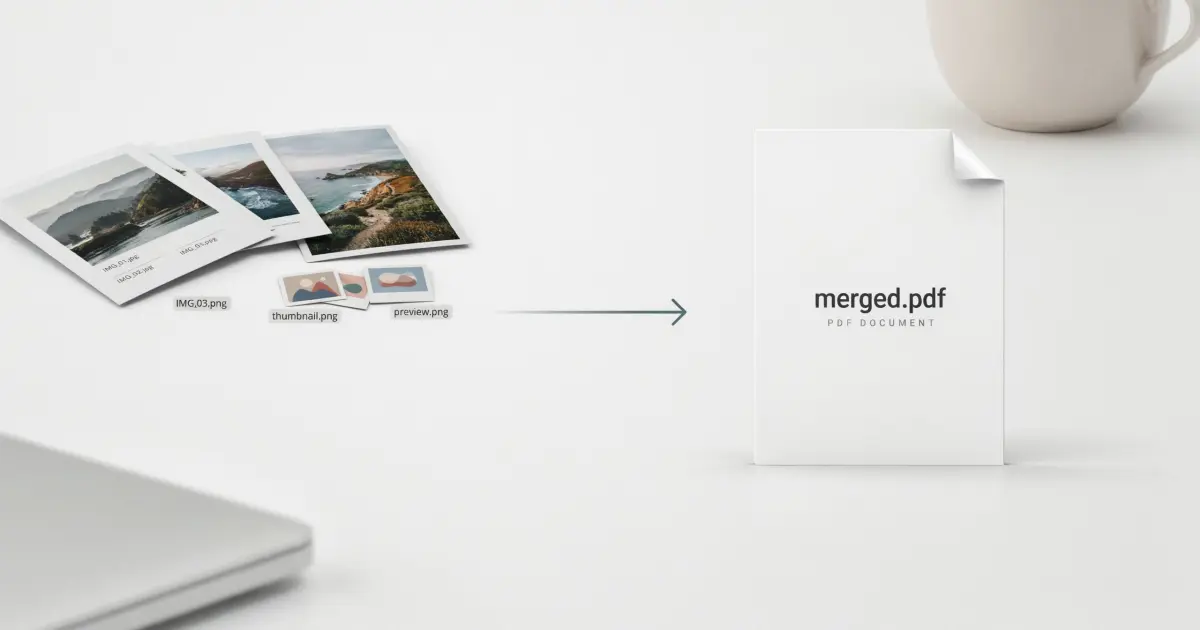
You photographed six pages of a signed form, and now they sit in your gallery between a pizza picture and a blurry selfie. The office wants one file. You attach all six images to an email, and the reply comes back within minutes: “Please send it as a single PDF.”
This happens to almost everyone sooner or later. Images are great for capturing things, but terrible for sharing documents. They arrive in the wrong order, they are hard to print, and they are easy to lose. A reliable pdf converter solves the whole thing in a minute, and you do not need to install software or create an account. Below are the most common image problems and the simplest fix for each.
Problem 1: Six Loose Photos Instead of One Document
An application form, a set of receipts, or a handwritten assignment photographed page by page ends up as separate image files. Sending them individually looks careless, and the person on the other end has to assemble them like a puzzle.
The fix: Convert the images into one PDF. Online tools let you upload several JPG or PNG files together and combine them into a single document, with each image becoming a page. The result is one file, one attachment, and one clear document that anyone can open on any device.
Problem 2: The Pages Come Out in the Wrong Order
Phone galleries sort photos by time, but you do not always shoot in the right sequence. Page four might be sitting before page two, and nobody notices until the document is already sent.
The fix: Arrange the images before converting. Upload the files, drag them into the order you want, and only then create the PDF. A quick glance at the preview takes five seconds and saves you from the embarrassment of a shuffled document.
Problem 3: The Final PDF Is Too Heavy to Email
Modern phone cameras produce large images. Ten photos can easily add up to a file that your email provider rejects, or that a portal refuses because it has a strict size limit.
The fix: Compress the PDF after creating it. A good compression tool lets you choose a target size, so you can bring the file down to something light enough to upload. Always open the result afterward and check that the text is still readable. If the document contains small print, compress gently rather than as much as possible.
Problem 4: Screenshots Pile Up and You Cannot Share Them Cleanly
PNG is the usual format for screenshots, such as chat records, payment confirmations, or steps in a tutorial. Sending ten screenshots one by one is messy, and some platforms compress them so badly that the text becomes hard to read.
The fix: Use a PNG to PDF conversion. Multiple PNG images can be merged into one document, which keeps your screenshots together and in order. This works well for proof of payment, support tickets, or a how-to guide you want to send to a coworker.
If you have a mix of JPG and PNG files, convert each group first, then combine the two PDFs with a merge tool. It takes one extra step, but you still end up with a single file.
Problem 5: Some Pages Are Sideways or Upside Down
Phones sometimes save images with the wrong orientation, especially when you photograph a page from above. You end up with a PDF where page three is lying on its side.
The fix: Rotate the affected pages after conversion. A rotate tool lets you turn pages to the correct orientation and save the file again. Do this before you send the document, because a sideways page makes the whole file feel unprofessional.
Problem 6: You Cannot Search or Copy Text from the PDF
A PDF made from photos is basically a stack of pictures. You cannot search for a name, copy an address, or paste a paragraph into another document. For long documents, this is frustrating.
The fix: Run OCR on the file. OCR reads the text inside images and creates a searchable, selectable document. It works best on clear, straight, well-lit pages, so it helps to take your photos carefully. Once the text is recognized, you can search for a word in seconds instead of scrolling through every page.
Problem 7: You Need to Edit the Content Later
Sometimes the PDF you made is not the final version. A date needs correcting, or you want to reuse the text in a new letter.
The fix: After OCR, convert the PDF to a Word file and edit it directly, or use a PDF editor to change text and add notes on the page. This saves you from retyping an entire document by hand.
A Quick Checklist Before You Send
Run through this short list every time:
Photograph pages flat, in good light, and fully inside the frame.
Put the images in the correct order before converting.
Rotate any sideways pages.
Compress the file if it is too large.
Open the finished PDF once and scroll through every page.
That last step catches most mistakes. It takes less than a minute, and it is the difference between a document that looks careful and one that looks rushed.
A Few Sensible Cautions
Free online tools are convenient, but think before you upload. Documents such as ID cards, bank statements, and signed contracts contain private details. Read the privacy policy of any tool before uploading sensitive files, and keep a backup of your original images.
Frequently Asked Questions
1. Can I combine multiple JPG images into one PDF?
Yes. You can upload several JPG images together and convert them into a single PDF file, with each image appearing as its own page.
2. Does converting PNG images to PDF reduce their quality?
A good converter aims to preserve image detail. Still, always check the finished file, and avoid heavy compression if your PNGs contain small text.
3. Do I need to sign up to use an online PDF converter?
Not for this platform. It states that no signup or subscription is required, so you can upload your files and download the PDF directly.
4. Can I change the order of my images before creating the PDF?
Yes. Arrange the files in the order you want before converting, and check the result afterward to confirm every page is where it should be.
5. How do I make the text in my image-based PDF searchable?
Use the OCR tool. It reads text from images and produces a searchable, selectable PDF, which works best when the original photos are clear and straight.
6. Will it work from my phone?
It is designed to work across devices, so you can convert photos straight from your phone without moving them to a computer first.
Conclusion
Turning images into a single PDF is one of the simplest ways to look organized, whether you are sending a form to an office, handing in an assignment, or sharing receipts with an accountant. Arrange the images, convert, rotate if needed, compress if the file is heavy, and run a quick check.
Next time you finish photographing a stack of pages, try the process once with a good pdf converter. You will see how much cleaner one tidy file feels compared with a handful of loose pictures, and you will probably never go back to sending images one by one.
Keep reading
-
Tripropylphosphine in Thiophene Ethanol Production: A Niche Role for Chemical Manufacturing Companies
Nov 9, 2026
-

Reliable Chimney Repair Near Me for Quick and Professional Service | SRM Enterprises
Oct 27, 2026
-

Custom Home Construction and Home Remodeling in Houston: Creating Spaces for Modern Living
Oct 26, 2026
0 Comments
No comments yet. Be the first to respond.
Log in to comment